Notifications
BrightBlur keeps you up to date through an in-app notifications list and, optionally, push notifications delivered to your device.
The notifications list
Section titled “The notifications list”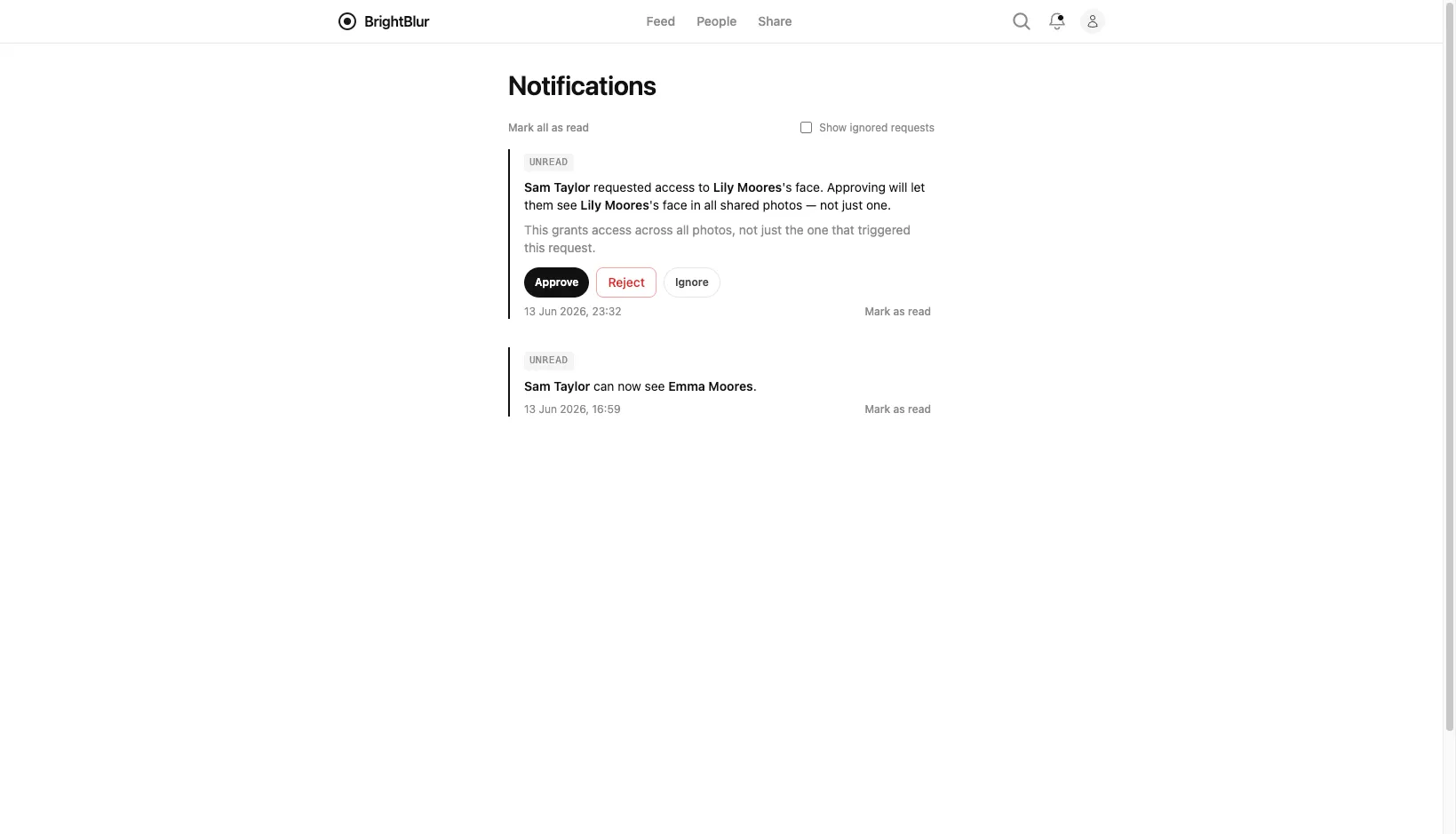
Open the Notifications page (the bell in the header) to see what needs your attention. The header bell shows an unread count. Notifications include:
- Access requests — someone has asked to see a person whose face data you control. You can approve, reject, or ignore the request directly from the list. Approving grants access to that person across every shared photo, not just the one that triggered the request.
- Access approved or rejected — the outcome of a request you made to see someone’s face.
- Someone joined a circle — a new member can now see one of the people you control (for example, after they accept an invite link).
- A new comment — someone commented on one of your photos.
- Group hand-over — another controller wants to transfer a person to you. Accepting merges that person’s face data into your own.
- A member left a group — when someone leaves a person-group, you may want to rotate that group’s key.
- Report outcomes — if you reported a photo, you’re told when it has been reviewed or actioned; if a photo of yours is removed after a report, you’re told that too.
Read state
Section titled “Read state”Notifications stay unread until you act on them. Merely opening the list does not mark everything read — that would clear the count for genuinely outstanding items. Tap Mark as read on an individual notification, or resolve the underlying request (approve, reject, ignore, or accept a transfer), and that item clears on its own. If you just want a clean slate, Mark all as read clears the unread count in one go. You can tick Show ignored to bring previously ignored requests back into view.
Push notifications
Section titled “Push notifications”Push notifications let BrightBlur reach you about things that need your attention — an access request, a new member, a comment, a request outcome, or an “on this day” reminder of a photo shared on this date in a previous year — even when the app is closed. They are off by default. To turn them on, open Settings and find the Notifications card:
- Tap Enable notifications and grant permission when your browser asks.
- Once subscribed, the card shows an Enabled badge. You can send yourself a test notification, or Turn off at any time.
If notifications were previously blocked at the browser level, the card explains that you need to re-enable them in your browser’s site settings before BrightBlur can ask again.
Using an iPhone or iPad
Section titled “Using an iPhone or iPad”iOS only delivers push notifications to apps added to the Home Screen. If your browser reports that notifications are unsupported:
- Open BrightBlur in Safari.
- Tap the Share button (the square with an upward arrow).
- Scroll down and choose Add to Home Screen, then tap Add.
- Open BrightBlur from the new Home Screen icon, then return to Settings and enable notifications.
Shared devices
Section titled “Shared devices”Push subscriptions are tied to your account, not just the browser. If you sign in on a device that was previously subscribed under a different account, BrightBlur reconciles the subscription on your behalf — unsubscribing the old binding and re-subscribing for you — so notifications never reach the wrong person.