Sharing & Access
How sharing works
Section titled “How sharing works”Sharing in BrightBlur is people-first. Each person has a circle — the set of people allowed to see that person’s face. When you post a photo, it reaches the circles of everyone you tagged in it, plus your own. You don’t build a recipient list by hand: tag who’s in the photo and it goes to the right people. You can review and adjust this audience before posting (see Uploading photos).
Adding people to a person’s circle
Section titled “Adding people to a person’s circle”To let someone see a person across your photos, add them to that person’s circle:
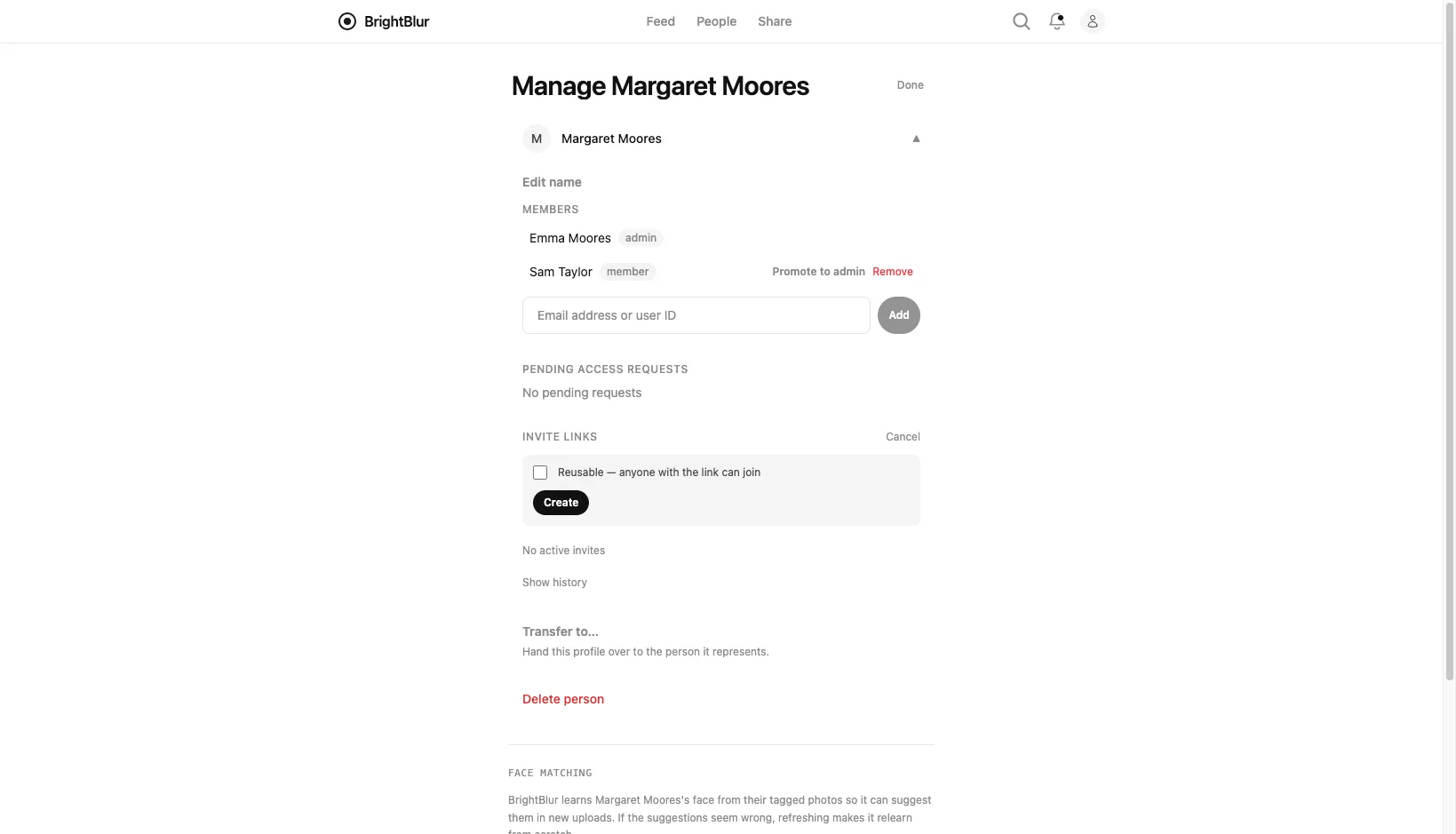
- Open the person from the People page and go to their settings.
- In the members section, create an invite link and share it with them. (Invite links can have an expiry and a maximum number of uses.)
- When they open the link and join, they can see that person’s face in photos shared with them.
The other way someone gains access is to ask: if they can see a photo but not a particular face, they can tap it and request access, and an administrator approves or declines from their notifications — see Access Requests.
Admins
Section titled “Admins”You can promote other members of a person’s circle to Admin. Admins can add and remove members, manage other admins, and rename the person. The person’s creator can additionally transfer ownership to another admin.
Automatic key rotation
Section titled “Automatic key rotation”When someone joins or leaves a circle, BrightBlur rotates that group’s encryption keys (see Key Rotation for the manual equivalent). This ensures:
- Removed members lose access to future photos immediately — they cannot decrypt anything uploaded after their removal.
- New members get access to future photos, and to the historical ones they’re entitled to, re-wrapped for them when they’re added.
You don’t need to think about key management — it happens automatically behind the scenes.